 No login required
If you frequently transfer files between your phone and your PC, you know the struggle: you send 10 files from your phone, and on your PC, you have to click the "Download" button 10 separate times. Or worse, your browser prompts you with a "Save As" dialog box for every single file.
Even the best web-based AirDrop alternatives (like Snapdrop or ShareDrop) suffer from this limitation because web browsers, by default, restrict websites from silently saving files to your hard drive.
Until today.
Introducing Trusted Device Auto-Save
We've fundamentally upgraded how Textunnel handles file receiving. By leveraging Chrome and Edge's bleeding-edge File System Access API, Textunnel can now write files directly to a folder of your choice—silently, automatically, and securely.
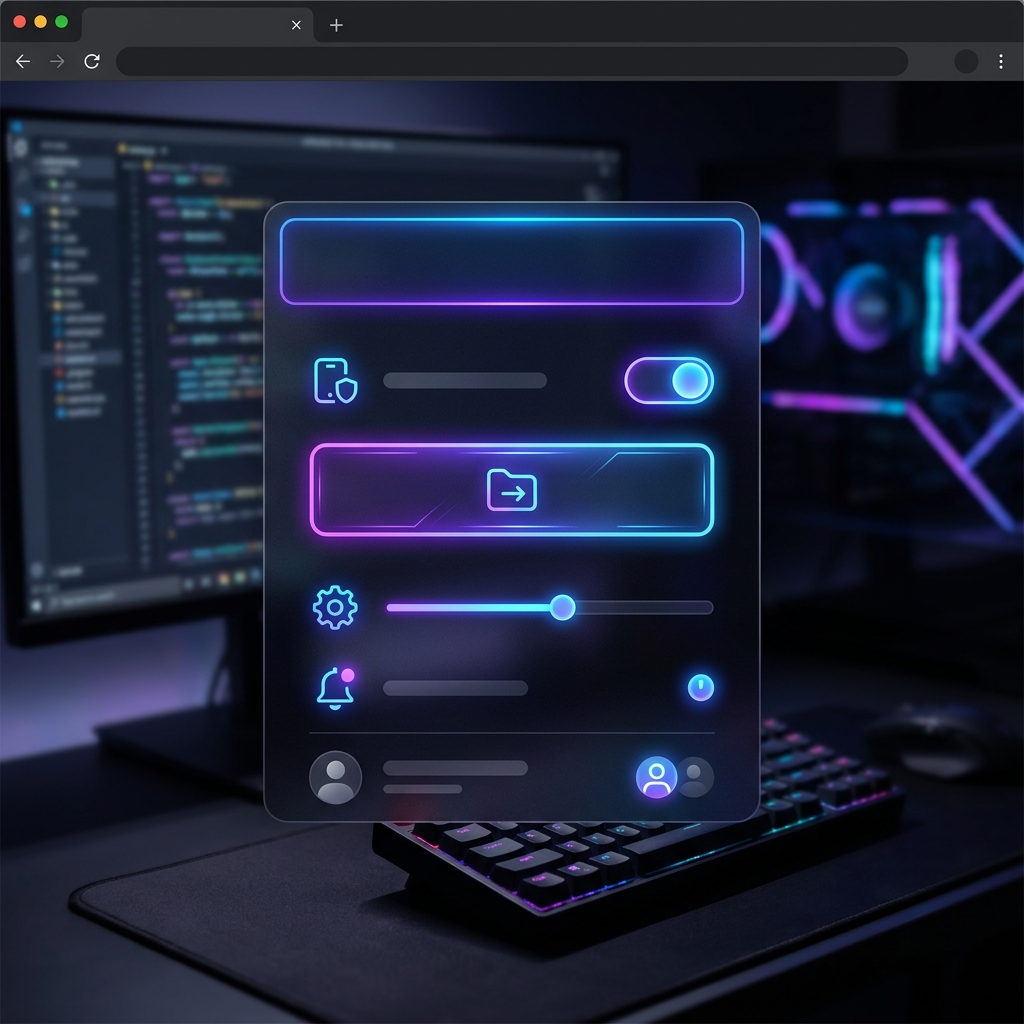 Auto Save Settings UI
How it Works
- Pick a Destination: Open Textunnel on your PC and head to the Settings panel.
- Choose Download Folder: Click "Choose Download Folder" and select a dedicated folder (e.g., your Desktop or a "LAN_Drop_Files" folder).
- Trust Your Phone: Ensure your phone is marked as a "Trusted Peer".
That's it! The next time you send a file from your phone to your PC, you won't even need to touch your mouse. The file will transfer at ultra-fast local network speeds and instantly appear inside the folder you selected.
No pop-ups. No "Save As" dialogs. No download history clutter.
The Magic Behind the Scenes
Unlike traditional web tools that use the <a download> hack (which triggers the browser's download manager), Textunnel stores a secure, encrypted handle to your local folder. When a file chunk finishes transferring over our peer-to-peer WebRTC connection, Textunnel bypasses the browser's download manager entirely and writes the raw data directly to your disk.
This is the exact same architectural approach used by native desktop apps like Apple's AirDrop or Microsoft's Nearby Share—now available instantly in your browser, with zero installation required.
Stop clicking "Save". Start dropping files like a pro with Textunnel.


