 No login required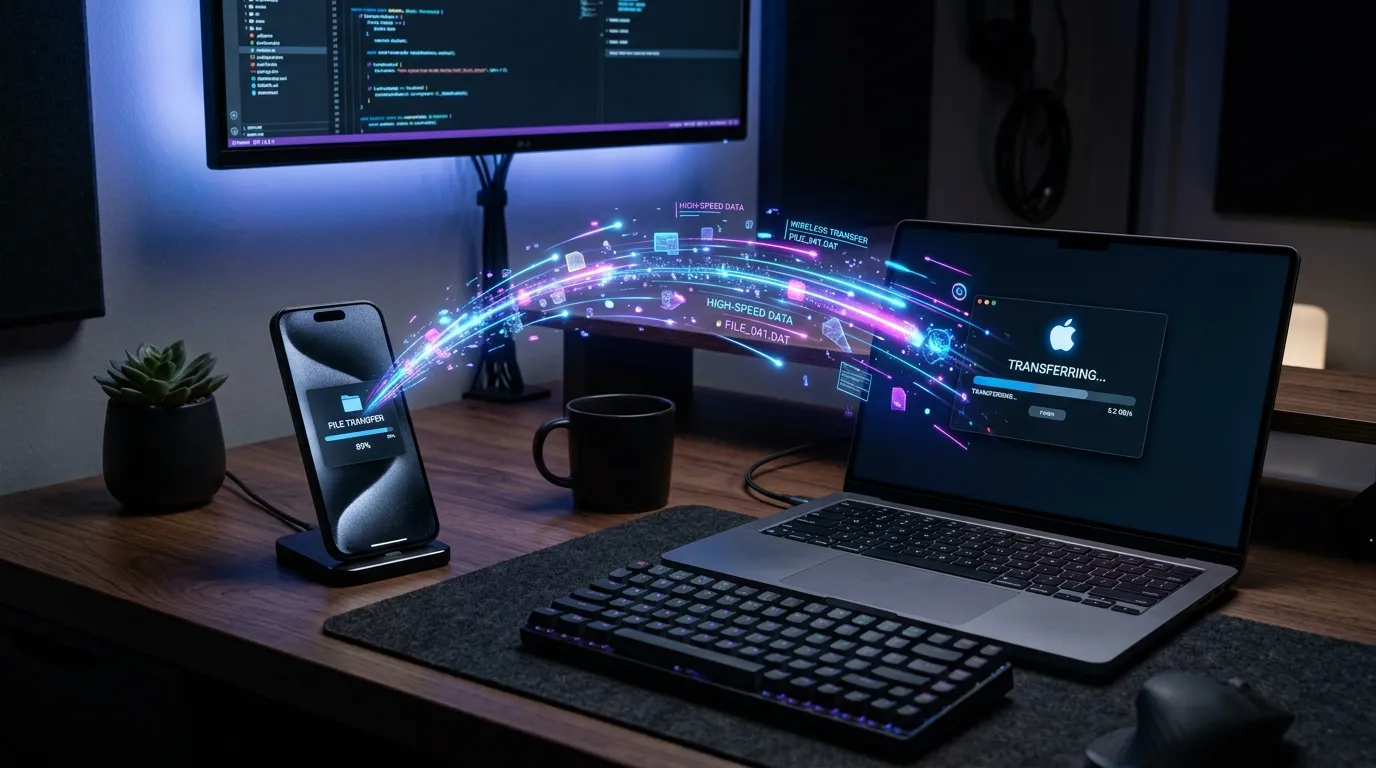
To transfer files without USB, use AirDrop for nearby Apple devices, Quick Share for supported Android–Windows pairs, or browser sharing when you do not want to install an app. A shared network folder suits repeated computer-to-computer transfers. Use a stored cloud link if the other person needs to download after you leave.
The first question is not “which service is fastest?” It is “which method works with these two devices, and will both stay available until the file arrives?”
Choose a method for your devices
| Devices or task | Start with | What you need |
|---|---|---|
| iPhone or iPad and a nearby Mac | AirDrop | Compatible Apple devices; Wi-Fi and Bluetooth enabled |
| Android phone and a Windows PC | Quick Share | Supported devices and the appropriate Windows app |
| Mixed devices, with no app installation | A Textunnel browser room | Compatible browsers, an internet connection to join, and a reachable transfer route |
| Two computers sharing files regularly | A network folder | A trusted network, a shared folder and account permissions |
| Recipient will download later | A storage-backed cloud link | A completed upload and suitable access and retention settings |
For a one-off transfer, start with one small file before selecting a whole folder. This checks discovery, reception and saving without tying up a large upload.
Transfer through a browser, step by step
A Textunnel room lets two available devices exchange files without installing a transfer app or creating an account. Same-Wi-Fi WebRTC direct transfer is the intended starting point. Joining an online room still uses internet services for discovery; it is not an entirely offline workflow.
- Open Textunnel on both devices. Create a room on one and join that same room on the other. For private material, set the same room password on both devices before sharing.
- Open the device panel and wait for File channel ready. A connected device or a delivered text message alone does not prove that the file channel is ready.
- On the sender, use the paperclip attachment button to select a file. On the receiver, accept the request if prompted. Keep both pages in the foreground.
- Wait for the file card to finish. WebRTC identifies the transport; Received by 1/1 means the receiving app confirmed completion for that recipient. It does not mean the recipient saved a separate copy.
- On the receiving card, tap the downward-arrow Download button and complete the browser or operating system save dialog. Open the saved file before closing either page.
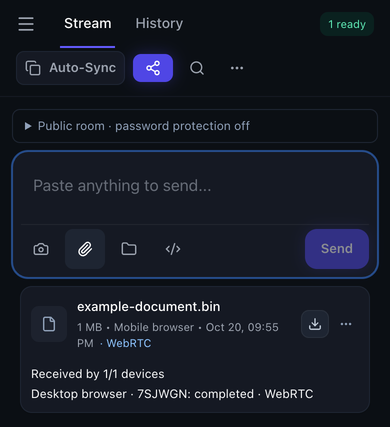 Actual browser interface: check the file card for its transport and the recipient's completion receipt.
Save a received file on iPhone
Use Safari's download flow, then locate the file in Files. The destination depends on your Safari download settings. If a preview opens instead, use its share menu and Save to Files where available. Keep the original page until you have checked the saved copy.
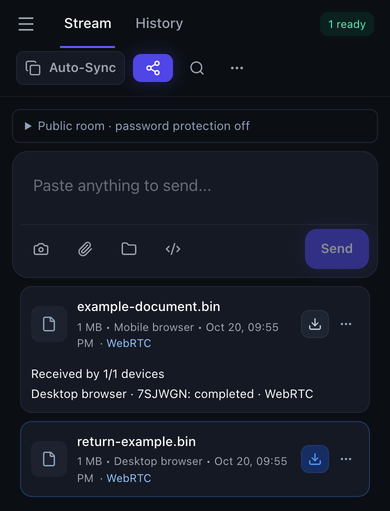 Download from the receiving card before refreshing. This screenshot shows the website, not the iOS system save dialog.
Received file bytes normally belong to the open page. After a reload, history may retain the file name without its contents. A grey download button on an old card can therefore mean the file must be sent again, rather than that the original transfer failed.
For device-specific instructions, use the iPhone-to-PC guide or Mac-to-Windows guide.
Use the native sharing feature when it fits
Nearby Apple devices: AirDrop
On the sending iPhone or iPad, select the item in Photos or Files, open Share, choose AirDrop, and select the recipient. Both sides need Wi-Fi and Bluetooth on; disconnect Personal Hotspot first. Check the recipient's AirDrop visibility if their device is missing, and follow any acceptance or code prompt. Apple's AirDrop instructions explain the current steps. This is an Apple workflow, not the browser-room procedure above.
Android and Windows: Quick Share
Install the appropriate Quick Share app on the PC, set receiving visibility, then select the file and destination device. Compare a PIN if shown and approve the request. Google documents the setup and receiving steps, including using Samsung's app for Samsung PCs. Check the vendor's current device requirements before installing; do not assume every Windows computer is supported. Windows Nearby sharing and Google's Quick Share are different features.
Use a network folder for repeated computer transfers
If you regularly move work between computers on a trusted network, configuring a shared folder avoids choosing a destination for every batch. Share only the folder you need, grant access to the intended account, then connect from the other computer using its network path. Microsoft's network folder instructions cover Windows setup.
This takes more preparation than a one-off browser transfer. Use account-based access and keep the share off public networks. If you only need to send a few files once, a room or native share is usually less setup.
Use cloud storage when both people cannot stay online
Upload the file completely, create a download link, and check its permissions before sending it. Choose a service whose file-size allowance, retention and account requirements fit your recipient. A stored link can remain usable after the sender closes the browser, subject to that service's rules.
A Textunnel live share link depends on the source tab remaining open; it is not a stored cloud download. For that distinction, see sending files without email.
If the wireless transfer stalls
| What you see | What to check next |
|---|---|
| No receiver appears | Confirm both pages use the exact same room and password. Check guest-Wi-Fi isolation or VPN local-network restrictions. |
| Text works but the file will not start | Check File channel ready and the file's size. Text and file traffic do not prove the same route works. |
| A phone transfer stops after locking or switching apps | Return to Safari, wait for the connection to recover, then ask the sender to Retry. Keep the page open. |
| The card completed but Download is grey after a refresh | The history entry may remain without file bytes. Ask the sender to resend and save before reloading. |
Do not disable network protections blindly. On managed or guest Wi-Fi, ask whether device-to-device traffic is permitted. The local-network troubleshooting guide covers connection checks in more detail.
File size, privacy and what we tested
Textunnel share links and folder packing accept up to 256 MiB. Receiving a larger file in a room needs a supported disk-saving API; available memory and storage still matter. Optional MQTT fallback requires permission in both tabs and accepts files up to 25 MiB. Check the current limits before choosing a large file.
WebRTC encrypts its transport. Optional content relay is a separate choice; public-room MQTT payloads need a room password to encrypt them against the broker. Local history and opt-in temporary recovery are not encrypted at rest. Read the privacy and relay explanation before sending sensitive material.
Our October 18, 2026 physical iPhone Safari ↔ Mac acceptance included same-Wi-Fi 1 MiB and 64 MiB transfers, with returned saved files matching source hashes. Lock-screen and background interruptions required reconnecting and retrying. This establishes those tested conditions, not a speed ranking or a physical Android–Windows result. The test record separates device tests from cloud-browser checks.
Maintained by the Textunnel team. Reviewed October 25, 2026.