 No login required
To transfer a file over a local network, connect both devices to a network that lets them communicate, choose a transfer method, then save and open the copy on the receiving device. One computer can use Ethernet while the other uses Wi-Fi. The important part is whether they can reach each other, not whether their connection icons match.
For an occasional transfer without installing an app, open Textunnel on both devices, join the same room and wait for File channel ready. Select the file, accept it on the receiver, then download and save it. For a folder you use every day, a system file share may be a better fit.
Choose a method below, or jump to the browser steps, shared folders or troubleshooting table.
Choose a method before sending
| Your situation | Start with | What to check first |
|---|---|---|
| A phone and computer need to exchange a few files now | A browser room | Both pages must remain available; check the receiver's saving limits |
| Two computers need repeated access to the same folder | An SMB shared folder | The host stays on; the intended account needs folder access |
| You want an installed app for nearby devices | A local-transfer app such as LocalSend | Install it on both devices and allow the required local-network access |
| You have a multi-gigabyte file or a long folder copy | A shared folder or another method suited to the destination | Free space, permissions and interrupted-copy behavior |
| The recipient is elsewhere or will download tomorrow | A stored download link | This is a different job from a live LAN transfer |
A shared Wi-Fi name is not enough. Guest networks can isolate clients; an Ethernet port may belong to another network segment. On a managed network, ask which sharing methods are permitted. A room code cannot bypass those rules.
If the recipient will not be online at the same time, use the guide to sending files without email to choose a stored-link workflow instead of leaving a live transfer waiting indefinitely.
Send a file through two browsers
1. Put both devices in the same room
Open Textunnel on the sending device and choose Create room. Open the room link on the receiving device, or use Enter room and enter the same room code. If the room has a password, use the same password on both devices. Treat the code, link and password as private.
Keep the receiving page in the foreground. On a phone, finish the transfer before locking the screen or switching to another app. Do not refresh either page while a file is moving.
Textunnel's online rooms use internet services for discovery and connection setup. This remains true when the eventual file channel is direct. If you require file content to avoid optional internet relay, select Direct only in the connection preferences on both devices before sending.
2. Check the file channel, not just device presence
Open the device panel and look for File channel ready next to the receiver. A device being listed or connected does not, by itself, establish that a large file can be delivered.
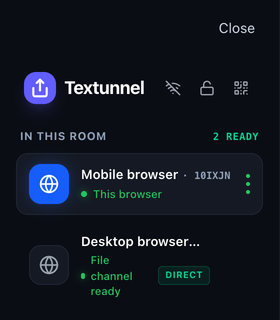 Check File channel ready before selecting a large file. Running interface captured at a phone-sized browser viewport on October 20, 2026; this is not a physical-phone screenshot.
If there is no receiver, confirm the room and password first. Then check the network: can the devices communicate across that Wi-Fi or Ethernet connection? Repeatedly choosing a file will not repair a missing peer connection.
DIRECT identifies a non-relay WebRTC route; it does not prove that traffic remained inside your LAN. MQTT fallback is a separate internet content route requiring permission in both tabs. A WebRTC label identifies the transfer technology; check the receiver's connection details when the exact route matters.
3. Select the file and accept it on the receiver
Use the attachment button, or drag a file into the desktop transfer area. For a first connection, send a small file you can easily recognize before attempting the larger copy.
On the receiver, respond to the incoming offer. Choose the available browser-receive or disk-saving option and complete any file-picker prompt. A rejected offer needs a new attempt; it is not a completed delivery. If an internet-relay permission prompt appears, decide whether that route fits your requirement rather than accepting it merely to dismiss the prompt.
For several files, consider how the recipient needs to use them. A packed folder becomes a downloadable archive and uses browser memory while being prepared. It is not an unrestricted network-drive replacement.
4. Save the received copy
On the sender, Received by 1/1 devices means the receiving app has verified the complete file. It does not mean the recipient has saved it to disk. On the receiver, use Download and finish the browser or system save flow. If a supported disk destination was selected at the start, check that destination after completion.
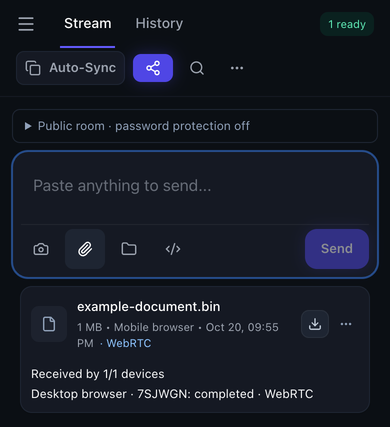 The sender's receipt confirms receiving-app verification. The receiver still needs a saved copy. Captured from the running browser interface on October 20, 2026, using example file and device names.
On iPhone, save to Files when the system offers that action. Later, open Files and look in the location you chose; Downloads may be under iCloud Drive or local storage. For a copy that stays on the phone, choose On My iPhone instead of a syncing cloud location. A file in Files is not automatically an item in Photos. Apple's guide to finding files and downloads explains the locations.
On a computer, check the browser's download list or the selected destination. Open the file from storage before deleting the original. To send it back from a phone, choose that saved file through the attachment picker, rather than relying on a history card.
Use a shared folder for repeated computer-to-computer copies
A shared folder is useful when you regularly move projects or access the same directory from another computer. The host must remain reachable, and access depends on its sharing settings and the account used to connect.
Windows host: select the intended folder in File Explorer, open its sharing options and choose Specific people. Grant access to the intended account. On a trusted private network, network discovery and file sharing may need to be enabled. From the other PC, browse Network or enter the host address in File Explorer, then open the share with the permitted account. For example, enter \\HOME-PC if HOME-PC is the sharing computer's name. Copy a test file and verify it at the destination. Remove sharing when no longer needed. Microsoft's LAN sharing instructions describe the current menus.
Mac host: open System Settings → General → Sharing → File Sharing. Add the intended folder and set its users' permissions. In Options, enable SMB and, when sharing to Windows, the intended account. Apple documents these settings in Set up SMB file sharing on Mac.
For the receiving-side connection steps in both directions, use the Mac and Windows file-sharing walkthrough. Keep this browser guide open if you are comparing the approaches; enabling a system share is not necessary for Textunnel.
If you can open the share but cannot copy into it, check both the share's permissions and the destination folder's permissions. Also check free space and the account actually used to sign in. Do not fix a permission error by granting everyone write access or turning off the entire firewall.
Use an installed local-transfer app when that suits both devices
If you are happy to install software, LocalSend provides a nearby-transfer workflow on Windows, macOS, Linux, Android and iOS. Install and open the native app on both devices, select the file, choose the intended receiver and accept the transfer. Check the destination configured in the receiving app.
This can suit a network without internet after installation. It still requires reachable peers and the appropriate local-network permissions. If discovery fails, check guest-network isolation and the app's allowed network access. Installing an app does not make two isolated devices reachable. This section describes the documented workflow, not a new LocalSend device test or speed comparison.
Check size limits before a long browser transfer
| Textunnel route or storage condition | Current limit or requirement |
|---|---|
| Room file received in browser memory | Above 256 MiB, a supported disk-saving API is required |
| Received files retained in an open room | 512 MiB shared temporary cache; save files and clear the receiving stream when full |
| Share link or packed folder | Up to 256 MiB; keep the source tab open |
| MQTT file fallback | Up to 25 MiB per file, after permission in both tabs |
| Text or clipboard message | 64 KiB encoded message limit; use a file for larger content |
Available memory, free storage and browser support still matter. An installed browser does not automatically offer the disk-saving API required for a large room file. For a file above the receiver's supported path, choose a shared folder or another suitable transfer method before waiting through repeated failures. The current limits and save instructions explain each path.
For slow transfers, keep both devices awake and check the actual route first. Then check Wi-Fi signal, competing traffic, VPN local-network access and the storage destination. Where practical, test a wired connection on the same permitted LAN. Neither the router's advertised link rate nor this article establishes an expected file-copy speed.
Troubleshoot the symptom you can see
| What happens | Check next | What to do |
|---|---|---|
| The other device is missing | Exact room/password; both pages active; network reachability | Rejoin the intended room and check whether guest Wi-Fi or a VPN isolates peers |
| A device appears, but no file channel is ready | Presence versus the file channel; network policy | Wait for File channel ready; check approved VPN/firewall rules before sending again |
| Text arrives, but a file fails | File channel, route, file size and receiver storage | Try a small file, then select a method within the intended file's limits |
| Transfer is unexpectedly slow | Selected route, Wi-Fi conditions, VPN and disk writes | Compare permitted network conditions; do not assume DIRECT certifies a LAN path |
| An old card has a gray download icon | Whether the page reloaded and only history remains | Ask for a resend; save the new file before refreshing |
| Locking or backgrounding the phone stops progress | Whether the channel has reconnected | Return to the original page; the sender must Retry the failed file |
| A shared folder opens but copying is denied | Share and folder permissions, account and free space | Correct access for the intended account, then copy again |
On a managed network, ask the administrator for the allowed sharing path. Do not disable a required VPN or broad security controls to follow a troubleshooting checklist.
Recover after a disconnect without assuming it finished
Restore the network and return to the original pages. Wait for File channel ready, then have the sender choose Retry and accept the retry if prompted. Reconnection alone does not restart a failed transfer.
Eligible verified prefixes up to 256 MiB can resume within 10 minutes under the documented conditions. To retain incomplete data across a refresh, enable Recover interrupted files after refresh in the receiver's Preferences before starting. This opt-in recovery stores incomplete bytes locally, unencrypted at rest. After a refresh, the sender may need to reselect the original file, and a disk receiver may need to choose its destination again. Clear temporary recovery data when finished. See recovery conditions before depending on a checkpoint.
Need to work without internet?
For Textunnel, load the site on both devices first, then use Offline Connect. The guest scans the host's Offer QR with the scanner inside the website; the host then scans the guest's Answer QR. Both scans are required. A general camera app may only display the signaling text rather than complete the connection.
The devices still need a reachable network path. Offline Connect does not promise an uncached first visit without internet. For an already configured shared folder or installed local-transfer app, use its local workflow. The offline transfer guide helps distinguish these cases.
What the Textunnel test record actually covers
The October 18, 2026 physical acceptance record covers iPhone Safari ↔ Mac on the same Wi-Fi with at least one VPN enabled. Files of 1 MiB and 64 MiB were saved and returned over WebRTC; returned SHA-256 values matched. A 64 MiB rejection also reached the sender correctly.
Lock-screen, background and network interruptions did stop transfers. Returning to Safari, reconnecting and manually retrying resumed retained prefixes; the completed 64 MiB return files then matched their original hashes. These are functional results, not speed benchmarks. They do not establish a physical Windows/Android, SMB or Ethernet test. The full coverage and limitations separate the environments that were tested.
WebRTC encrypts its transport. Public-room MQTT payloads need a room password for protection against the broker; local history and temporary recovery are not encrypted at rest. For a confidential file, review the privacy and relay details and choose a method appropriate to your network and devices.
Before deleting the source, check three things: the transfer completed, the destination copy is saved, and the saved file opens. That check matters more than the progress bar reaching its end.
Maintained by the Textunnel team. Reviewed October 29, 2026. Screenshot and physical-test dates are identified separately above.