 No login required
For a one-off Mac-to-Windows transfer, use a browser room and save the file on the receiving computer. For a folder you access every day, set up an SMB network share. If the computers will not be online together, use a stored download link; for a large offline copy, consider a compatible external drive.
The method should fit the job. A PDF for a colleague, a shared project folder and a 20 GB recording have different requirements. This guide covers both transfer directions, the permissions that commonly stop them, and how to confirm that the copy is usable.
Choose by file size and how often you transfer
| Your task | Method to consider | Main condition |
|---|---|---|
| Send a document or modest batch without installing an app | Textunnel browser room | Both pages stay available; file fits the receiving route |
| Repeatedly access files on the other computer | SMB shared folder | Trusted network and correctly configured account access |
| Move a large archive without internet | External drive | Compatible disk format, connectors and enough free space |
| Recipient needs to download after you leave | Stored cloud link | Completed upload, suitable permissions, quota and retention |
There is no measured speed ranking here. Wi-Fi conditions, disks, network policy, the selected route and the destination's saving support matter more than a claimed MB/s figure. Start with a small test file before a large batch.
Method 1: Send through a browser room
A Textunnel room is useful when you want an immediate exchange without setting up a shared folder or installing a transfer app. It uses the same workflow in either direction.
Mac to Windows
- Open Textunnel on both computers. On Mac, choose Create room. On Windows, enter that room code and choose Join room. If you use a room password, set the same one on both sides.
- Open the device panel and wait for File channel ready. A visible peer or a delivered text message is not enough to establish a working file channel.
- On Mac, use the attachment button to select the file. On Windows, accept the incoming file if asked and keep the page open.
- Wait for the sender's receiving-app receipt. Received by 1/1 confirms completion for that recipient; it does not confirm a separate file has been saved to disk.
- On Windows, select Download and finish the browser's save flow. Open the downloaded file before closing or refreshing either page.
Windows to Mac
Keep the same room open. Select the file from Windows, accept it on Mac if prompted, then download and open it on Mac. The operating system changes where the save dialog appears, not the need to save. If your browser asks for a destination folder, choose the intended location rather than assuming it went to Downloads.
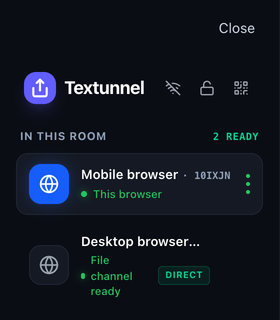 Real interface from a controlled browser session, October 20, 2026. Check File channel ready before selecting a large file. DIRECT identifies a non-relay route; it does not prove traffic stayed on your LAN.
Check file and folder limits first
Textunnel share links and folder packing accept up to 256 MiB. Larger room reception requires a supported disk-saving API; do not assume every browser offers it. Optional MQTT fallback accepts files up to 25 MiB, after permission in both tabs. Check current limits and saving support before choosing a large archive.
For a small folder, use the folder control where available and check the packed size. For a large project tree, an SMB share or a separate archive transferred through a suitable route may fit better. A browser room transfers a copy; it is not continuous two-way folder synchronization.
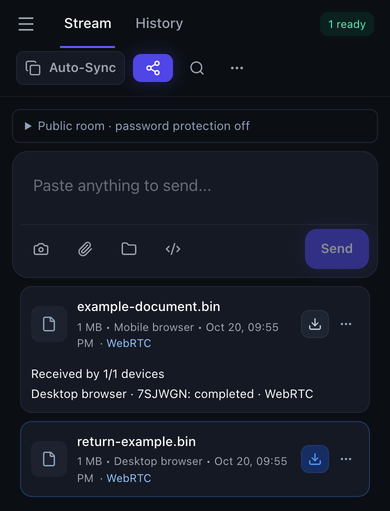 The same receiving-card control is used to download the file. This narrow browser screenshot illustrates the interface, not a physical Mac-to-Windows test or a system save dialog.
Method 2: Access a shared folder with SMB
SMB is built into macOS and Windows and suits repeated access on a trusted local network. One computer hosts a folder; the other signs in to access it. Keep the host awake and available while copying.
Share a dedicated transfer folder rather than your entire home directory. Start with access for a named account and only the permissions needed. Reading files requires less access than editing or deleting them. On a managed computer, follow your organization's sharing policy.
Share a Windows folder, then connect from Mac
- On Windows, connect to the trusted network. Use its Private network profile only when that classification is appropriate, and enable the relevant file-sharing settings.
- In File Explorer, choose the folder's sharing options. Depending on the version, these appear under Properties → Sharing or Show more options → Give access to → Specific people.
- Grant the intended account access. Note the computer address and share name; for example, a share named
Transferon a computer at192.168.1.45. - On Mac, open Finder and choose Go → Connect to Server (
Command-K). Entersmb://192.168.1.45, replacing the example with your Windows address. Choose the shared folder, such asTransfer, when prompted. - Connect with the account authorized on Windows. Copy a small file, then open it. If writing is required, check that the account can also create a file in that specific folder.
Microsoft explains sharing a folder with specific people; Apple documents connecting to a Windows computer from Finder. Account details and menu labels can vary with device management and operating-system version.
Share a Mac folder, then connect from Windows
- On Mac, open System Settings → General → Sharing, then the details for File Sharing.
- Add the intended folder and set user permissions. In Options, enable SMB sharing and the account you intend to use from Windows, following any authentication prompt.
- Note the network address displayed in File Sharing. If the address is
smb://192.168.1.20, use that computer address in the Windows path. - On Windows, enter
\\192.168.1.20in File Explorer's address bar. Sign in with the authorized Mac account and open the shared folder. - Copy and open a small test file before starting the batch. When the exchange is temporary, remove unneeded access and disable the SMB account-sharing option afterward.
Apple's Mac-to-Windows sharing instructions cover the current settings and account-sharing precautions. Do not solve an access error by exposing the folder to everyone or disabling authentication across the computer.
Connected, but cannot write?
Check the permissions in two places: the share and the underlying folder. An account can be allowed to see a share while still lacking permission to modify its files. Also check free space and whether you are using a saved login for a different account. Grant additional access only to the intended account and folder.
Method 3: Use an external drive for a large offline copy
An external SSD or flash drive can be practical when the computers are not connected or a long network transfer is inconvenient. Check the drive's format before copying; a disk that works on one computer may not be writable on the other.
| Format | What to consider for a Mac/Windows exchange |
|---|---|
| ExFAT | Common choice for a drive both systems need to read and write |
| NTFS | Standard Windows use; a Mac may read it without being able to write through its normal built-in support |
| APFS | Designed for Apple systems; do not expect ordinary Windows File Explorer to read it natively |
| FAT32 | Broad compatibility, but unsuitable for an individual file of 4 GiB or more |
Apple lists Windows-compatible formats in its Disk Utility format guide. Reformatting erases the drive. If it already contains needed files, back them up or use another drive; changing format should not be the first response to an error.
Copy the data, safely eject the drive, then connect it to the other computer and copy to the intended destination. Open representative files and check the copied size or file count before deleting the source. For an archive that must match exactly, compare a checksum using tools you trust. Transfer compatibility does not make a Mac application run on Windows, or vice versa.
Method 4: Use a stored link when the recipient will download later
Upload the file to a service that supports its size and your available storage. Wait for the upload to finish, grant the intended recipient access, then send the link. On the receiving computer, download the actual file and open it; a preview is not the same as a saved copy.
This can fit remote or asynchronous work because the source computer need not keep a live browser session open. Check the provider's current allowance, expiry, account requirements and privacy settings rather than relying on a generic “free storage” figure. Revoke access when continued sharing is unnecessary.
A Textunnel live share link is different: the source tab needs to remain available. For a comparison based on availability and retention, see browser sharing versus cloud storage.
Troubleshoot by the symptom
| Symptom | Check next |
|---|---|
| The other computer does not appear | Exact room/password for Textunnel; host address and share name for SMB. Same Wi-Fi does not guarantee peers can communicate. |
| Guest Wi-Fi or VPN prevents access | Check permitted local-network access and ask the administrator about client isolation. A room code cannot override network policy. |
| Text arrives but a file will not start | Confirm File channel ready, selected route and file size. A successful text message is not a large-file test. |
| Copy stops when the MacBook lid closes | Wake the computer, restore the connection and retry the failed copy. A browser wake lock does not guarantee operation with the lid closed. |
| An old browser card has no working download | Received bytes may have disappeared after a reload; ask for a resend and save before refreshing. |
Do not turn off the entire firewall or bypass a managed VPN to diagnose a transfer. Check the approved sharing rules and use a method allowed on that network. The same-Wi-Fi troubleshooting guide covers browser route and interruption checks.
Privacy and evidence behind the browser workflow
Textunnel online rooms use internet services for discovery and connection setup. WebRTC encrypts its transport; optional content relay needs permission, and public-room MQTT payloads need a room password for encryption against the broker. Local history and opt-in recovery storage are not encrypted at rest. Read the privacy and relay details when deciding where a confidential file belongs.
The public test record separates physical iPhone Safari ↔ Mac transfers from checks using isolated browsers on a Windows cloud virtual machine. Those results are useful evidence for their tested conditions, but are not a physical Mac-to-Windows throughput benchmark. See the device and browser test coverage.
Choose the simplest method that fits the file and the recipient's availability, then confirm the saved copy. Keep the original until you know the transfer achieved what you needed.
Maintained by the Textunnel team. Reviewed October 26, 2026.