 No login required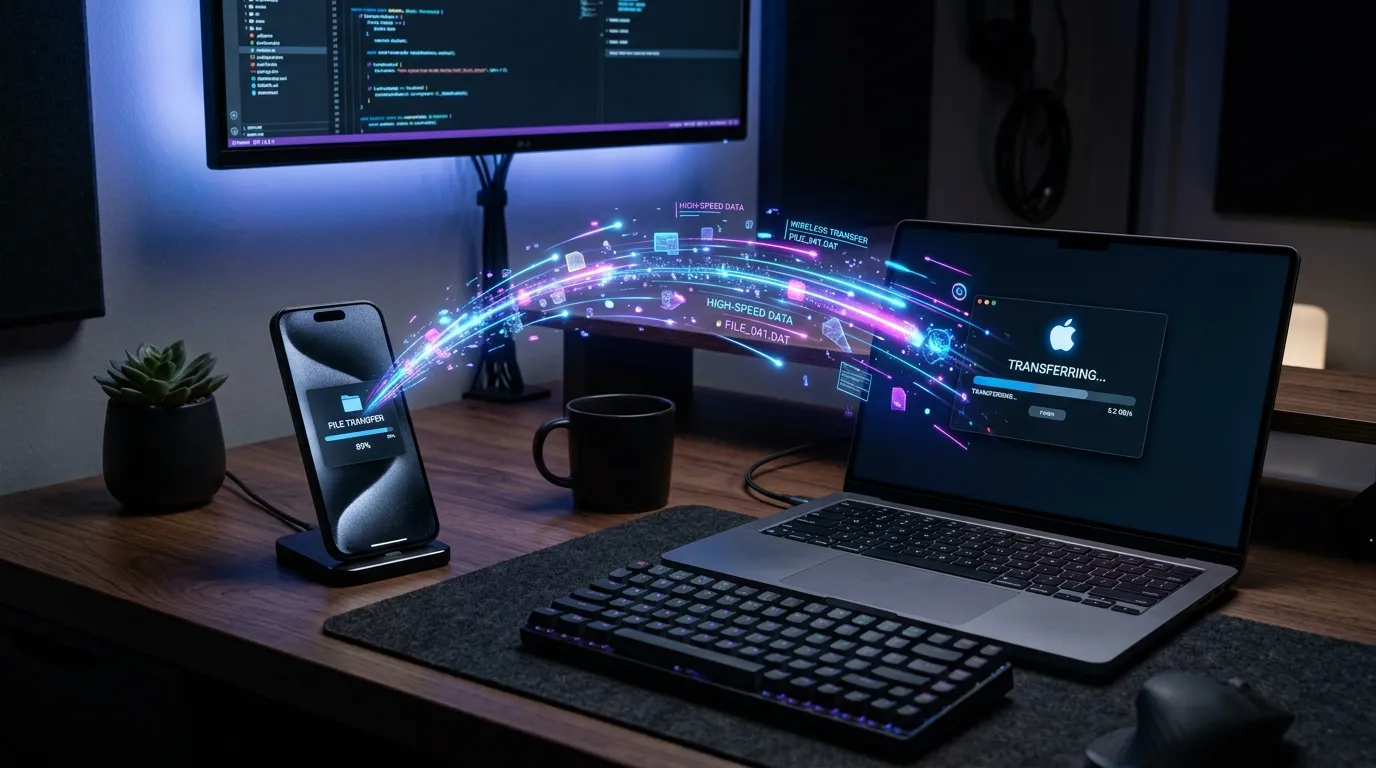
We’ve all experienced the frustration: you need to urgently get a document, a 4K video, or an invoice from your smartphone onto your laptop to meet a deadline, but you don’t have a USB cable, or your laptop only has USB-C ports while your flash drive is USB-A.
Fortunately, modern wireless technologies have made physical cables and USB thumb drives obsolete for daily file transfers.
In this comprehensive 2026 guide, we compare the 5 best wireless methods to transfer files between any devices (iOS, Android, Windows, Mac, Linux) without a USB cable.
⚡ Quick Comparison: The 5 Wireless Transfer Methods
| Wireless Method | Speed (Wi-Fi 6) | Setup Effort | File Size Limit | Works Across iOS/Android/Windows? |
|---|---|---|---|---|
| 1. Browser P2P (Textunnel) | ⚡ 80–120 MB/s | Instant (0 sec) | Unlimited | 🟢 Yes (100% Universal) |
| 2. Apple AirDrop / Nearby Share | 50–80 MB/s | Instant | Unlimited | 🔴 No (Ecosystem Locked) |
| 3. Cloud Storage (Google Drive) | 5–20 MB/s | Low (1 min) | 15GB Free | 🟢 Yes (Requires Account) |
| 4. Chat Messaging Apps (Telegram) | 2–10 MB/s | Low | 2GB Limit | 🟢 Yes (Compresses media) |
| 5. Bluetooth Transfer | 🐢 0.2–0.3 MB/s | High (Pairing PIN) | Unlimited | ⚠️ Slow & Unreliable |
Method 1: Instant Browser P2P Transfer with Textunnel (Fastest & Universal)
The most efficient wireless method in 2026 is Textunnel. It connects your phone and computer directly over your local Wi-Fi network using encrypted WebRTC DataChannels built into your existing browser (Safari, Chrome, Edge).
Why it beats USB cables:
- No Software to Install: Operates 100% in your existing web browser.
- Wire Speed Transfers: Reaches 80 to 120 MB/s on Wi-Fi 6, easily matching or outperforming USB 2.0 cables.
- Zero Cloud Uploads: Files stream directly across your local network and never store on any cloud server.
- Instant Camera QR Scan: Scan the QR code on your PC screen with your phone camera, and you’re instantly connected.
How to use it:
- Open
https://textunnel.comon your computer. - Scan the on-screen pairing QR code with your iPhone or Android camera.
- Select your files or photos—they transfer directly to your computer's downloads or clipboard instantly.
Method 2: Platform-Specific Wireless Tools (AirDrop & Quick Share)
If all your devices belong to the same operating system ecosystem, built-in OEM tools are a convenient choice:
- Apple AirDrop: Ideal for Apple-only environments (iPhone to Mac, iPad to iPhone). Uses peer-to-peer Wi-Fi and Bluetooth.
- Google / Samsung Quick Share: Pre-installed on Android and available via a downloadable app for Windows 10/11 PCs.
The Big Catch:
These tools refuse to talk across competing ecosystems. AirDrop cannot send to Windows PCs, and Quick Share does not natively support macOS or iOS without third-party workarounds.
Method 3: Cloud Storage Sync (Google Drive, OneDrive, Dropbox)
Cloud storage is the standard choice when devices are on different networks in different locations:
- Upload the file to Google Drive or OneDrive on Device A.
- Open Google Drive on Device B and download the file.
Limitations:
- Asymmetric Speed Penalties: Residential internet upload speeds are often 5x to 10x slower than download speeds.
- Storage Quotas: Free tiers fill up rapidly with video footage.
- Privacy: Sensitive contracts and private keys reside on third-party cloud corporate databases.
Method 4: Messaging Apps (Telegram / Discord)
Many users send files to their own "Saved Messages" chat on Telegram or private Discord servers:
- Pros: Accessible anywhere with an internet connection.
- Cons: Media compression (unless sent as uncompressed "Document"), 2GB single-file limit on Telegram, and upload bandwidth bottlenecks.
Method 5: Bluetooth File Transfer (Why You Should Avoid It)
While Bluetooth does not require internet or Wi-Fi routers, its bandwidth is severely limited:
- Real-world speeds hover around 200 KB/s to 300 KB/s.
- A single 1GB video will take over 1 hour to transfer and frequently disconnects midway.
Summary Verdict
- 🏆 Best Overall Solution: Textunnel — Delivers gigabit local Wi-Fi speeds, works seamlessly between iOS, Android, Mac, and Windows with zero software installation, and requires zero USB cables.
- 🍏 For Apple-Only Users: Use AirDrop.
- 🌐 For Remote Cross-City Sharing: Use Google Drive or OneDrive.


