 No login required
Quick answer
Use Textunnel’s iPhone-to-PC tool in Safari on your iPhone and a current WebRTC-capable browser on your PC. Enter the same room code, wait for File channel ready, then choose a file. No iTunes installation or USB cable is required for this workflow. Keep both pages open until the receiving app verifies the file.
This is a separate browser transfer workflow. It does not add Apple AirDrop to Windows. Apple documents AirDrop for its supported devices in the official AirDrop guide.
Send a file from iPhone to PC
- Connect both devices to the intended Wi-Fi and open Textunnel. Join the same room. If you set a room password, enter the same password on both devices.
- Check the device panel for the PC and File channel ready. A device name by itself is not enough.
- Tap the attachment button on iPhone and select a file. If the file is already in Files, choose it there. A Photos or camera picker determines the representation it provides; do not assume it always supplies the original library asset.
- On the PC, accept the incoming transfer if prompted. Keep Safari active while it sends.
- Check Received by 1/1 on the sender, then download and save on the receiving PC. That receipt confirms receiving-app verification, not completion of the system save dialog.
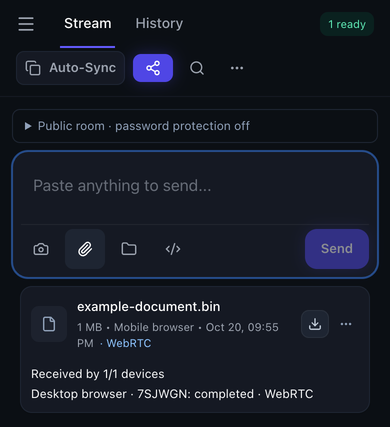 Use the paperclip attachment button to select a file. After sending, check WebRTC and Received by 1/1 devices on its card.
Send a file from PC back to iPhone
Choose the file on the PC and accept it in Safari. Wait for reception to finish, tap Download and save through the iOS flow. For a return transfer, use the attachment button to select the saved file from Files.
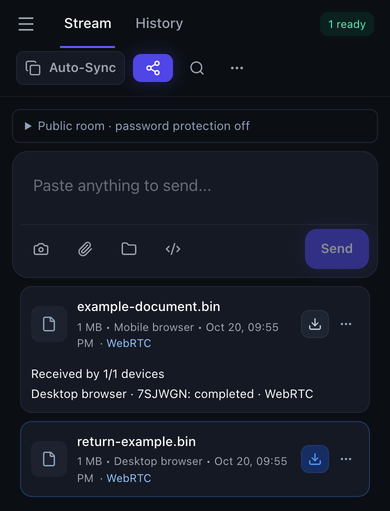 On the receiving file card, tap the downward-arrow download button. Then complete the iOS save flow; that system dialog is not shown here.
Save before refreshing. The current page normally holds received file bytes in memory. After reload, a history card can remain without downloadable content; the card should explain that the file is unavailable. Ask the sender to resend if needed.
Which file sizes should I plan for?
Share links and folder packing accept up to 256 MiB. Room reception above 256 MiB requires a supported disk-saving API, so do not treat the iPhone browser flow as an unlimited multi-gigabyte path. MQTT file fallback is limited to 25 MiB and needs explicit permission in both tabs. See current limits before choosing a route for a large video.
Use a current browser with WebRTC support and test a small file first when setting up a new PC. Actual speed depends on the network, selected route and browser resources.
If Safari stops sending after lock screen or background
Return to the original page, restore the network and wait for File channel ready. Ask the sender to Retry; reconnecting does not automatically restart a failed file. Eligible verified prefixes can resume within 10 minutes for files up to 256 MiB. To retain incomplete bytes across refresh, enable temporary recovery in receiver Preferences before starting. The temporary bytes are stored locally, unencrypted at rest; clear them afterward.
If text works but the file does not
Confirm the direct file channel is ready. A small text message can succeed without proving the large-file route works. Check VPN local-network access, guest Wi-Fi isolation and firewall rules. DIRECT means non-relay WebRTC, not proof that the route stayed on the LAN. You may keep Direct only; content relay is optional and requires permission. Connection troubleshooting.
Privacy and the tested iPhone workflow
WebRTC data-channel transport is encrypted. If you allow MQTT content relay in a public room, set a room password to encrypt payloads against the broker. Keep room codes and links private. The site also uses local history and third-party analytics and advertising scripts; privacy details matter when choosing a workflow for sensitive content.
In the October 18, 2026 acceptance record, iPhone Safari exchanged 1 MiB and 64 MiB files with a Mac on the same Wi-Fi. Files were saved and returned with matching SHA-256 values. Interrupted transfers recovered after reconnection and manual Retry. These results describe that tested setup, not a comparative speed result. See the complete test conditions and coverage.
Screenshots show the running Textunnel web interface at phone width. The iPhone Safari instructions above describe the device workflow; iOS system dialogs are not pictured.
Maintained by the Textunnel team. Content reviewed October 20, 2026.