 No login required
To send a large Android video to an iPhone without an extra quality reduction, transfer the original file and download that file on the receiver. First check its size. A short clip and a 3 GB recording need different transfer plans. For supported phones, try Quick Share's AirDrop compatibility; for a modest one-off file, a browser room may fit; for a multi-gigabyte recording or a recipient who will download later, choose a suitable stored-file service or external drive.
“Without quality loss” means avoiding another encode during sharing. The video from your camera may already be compressed. Keeping its original bytes does not guarantee that every iPhone app can decode its codec or display its HDR colors correctly.
Choose a method before starting a large transfer
| Your situation | Method to consider | Check first |
|---|---|---|
| Your Android phone supports Quick Share with AirDrop | Native nearby sharing | Phone compatibility, updates and iPhone receiving visibility |
| Both people can keep a browser open; file fits the route | A Textunnel room | File channel readiness, size limits and saving on iPhone |
| A 2 GB or larger recording, or the recipient is away | A storage-backed download link | File-size allowance, account storage, download access and retention |
| No internet, or a batch of large original recordings | A compatible external drive | Connectors, power, drive format and space on both devices |
For Textunnel, share links and folder packing accept up to 256 MiB. Receiving a larger file in a room requires a supported disk-saving API. Do not choose iPhone Safari as a presumed multi-gigabyte destination. Optional MQTT fallback accepts up to 25 MiB, after permission in both tabs. See the current file and route limits.
Find the original video and check its size
On Android, locate the recording in your file manager and open its Details or Info view; labels vary by device. Note the file name, extension and size. If you have trimmed or edited the clip, decide whether to send that export or the camera original.
Use a file picker that lets you select the file you identified. A gallery or messaging picker can offer a different representation, and a video's preview is not the original download. Do not assume a video's resolution, duration or “HD” badge proves its bitrate or byte size.
Before sending, check free space on iPhone. You need room for the download; importing into Photos or creating a converted copy can require more space. Keep the source until you have opened the saved result. If the video matters for editing or archival work, record a SHA-256 checksum where your tools support it: matching checksums are stronger evidence of identical bytes than matching names or resolutions.
Method 1: Quick Share with AirDrop on supported phones
Some Android phones can now send directly to an iPhone using Quick Share's AirDrop compatibility. Support depends on the device and software, so check Google's current compatibility and instructions rather than assuming every Android phone has it.
- Keep the devices nearby. On Android, open the file and choose Share → Quick Share.
- On iPhone, make AirDrop visible to Everyone for 10 Minutes for the exchange.
- Select the iPhone in Quick Share and approve the incoming transfer. Follow any device-specific prompts; Samsung users may need to enable sharing with Apple devices.
- Open the received item and confirm where it was saved before removing the original.
If the phone is not supported or the recipient does not appear, use another method. Google's QR sharing option is a separate workflow; do not assume it has the same connection, storage or size conditions as nearby AirDrop sharing.
Method 2: Send a file through a Textunnel room
This is an option when both devices have a compatible browser, can remain in the foreground and the file fits the selected route. It does not require an app installation or account. Online rooms still need internet for discovery and connection setup, even when file content takes a direct route.
- Open Textunnel in the Android browser and iPhone Safari. Create a room on one device and join the same room on the other. If you set a room password, enter the same password on both.
- Open the device panel and wait for File channel ready. Seeing a device or sending a short text message does not establish that a large file can travel.
- On Android, use the attachment button and select the original video file. Accept it on iPhone if asked. Keep both pages open and active.
- Wait for completion. The sender's Received by 1/1 receipt confirms receiving-app completion; the transport label explains whether that transfer used WebRTC or MQTT fallback.
- On iPhone, use Download, complete Safari's save flow, and open the result in Files before refreshing either page.
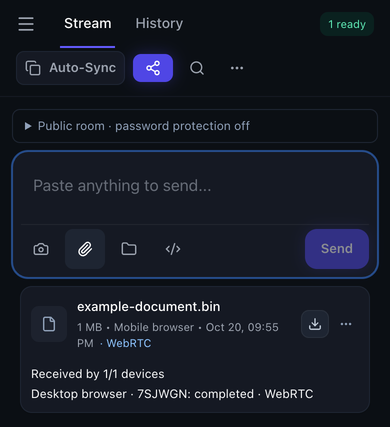 Real browser interface from a controlled session, October 20, 2026. This example binary file illustrates attachment and receipt controls; it is not an Android-to-iPhone video test.
Save to Files first, then import into Photos if needed
A completed transfer does not automatically place a video in the camera roll. Find the downloaded file in Files; Safari's download location depends on your settings. Open it and check playback. To add it to Photos, use Share → Save Video if that option is available for the file.
If Save Video is missing or the import fails, keep the file in Files and check its format and available storage. A file can arrive intact but remain unsuitable for Photos. Refreshing the original browser page is not a remedy: received file bytes normally belong to that open page, and an old history card may remain without a downloadable file.
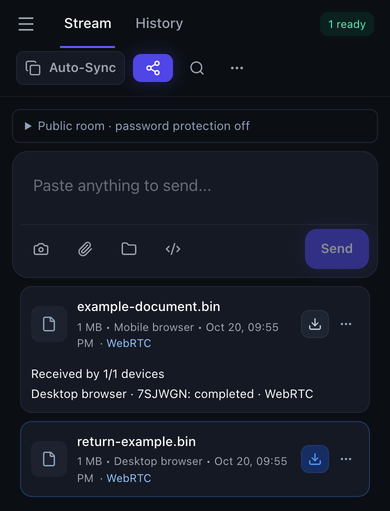 Use the receiving card's download arrow, then finish the system save flow. The website screenshot does not show the iOS Files or Photos import dialog.
If the phone locks or the transfer fails
Return both pages to the foreground and wait for the file channel to recover. Ask the sender to Retry; reconnection alone does not restart every failed transfer. Avoid locking either phone during the retry. If interruptions repeat, switch to a method that better fits the file rather than repeatedly attempting an unsupported size. See connection and interruption checks.
Method 3: Upload once and share a stored download
For a long recording, a distant recipient or a download that must remain available after you leave, a storage-backed link is often the better fit. Check the provider's current single-file allowance, your available storage and the recipient's access requirements first.
For example, in Google Drive on Android, upload the original video as a file and wait for completion. Share it with the intended recipient or configure a suitable link permission. On iPhone, download the actual file rather than relying on a streaming preview. Google's iPhone download instructions describe exporting to Files or saving supported media.
A low-resolution preview does not by itself prove the stored original was changed. Check the downloaded file before deciding it lost quality. Revoke access when the exchange is finished if continued access is unnecessary. This workflow stores a copy with the provider and uses upload and download bandwidth; those may be acceptable trade-offs for reliable later retrieval.
Method 4: Copy through a compatible external drive
For large batches without internet, copy the Android originals to an external drive, then connect that drive to iPhone and access it in Files. This avoids relying on two mobile browser tabs for a long transfer.
Check the connector and adapter for your actual iPhone, whether the drive needs extra power, and the supported disk format. FAT32 cannot hold a single file of 4 GiB or more, so it is unsuitable for a recording that exceeds that boundary. Apple lists supported formats and connection requirements in its external storage guide.
Copy the video into Files or import it into Photos where supported, then open the copied result. Do not reformat a drive containing needed files just to make it compatible; formatting erases its contents.
If it arrived but looks wrong or will not play
| Symptom | What to check | Next action |
|---|---|---|
| Blurry playback in a shared link | Is this a preview or the downloaded original? | Download the file and compare its details before resending. |
| File opens, but colors look washed out | HDR support in the receiving app and display | Keep the original; try a supported viewing app or make a separate SDR copy. |
| No playback, or Photos refuses the import | Codec, resolution, frame rate and complete download | Check compatibility; create a separate compatible copy if necessary. |
| File is smaller than the source | An edited export, picker conversion or incomplete download | Select the identified original and compare the saved file again. |
| Completed card, grey Download after reloading | The page no longer holds the received bytes | Ask for a resend and save before refreshing. |
MP4 is a container, not a guarantee of compatibility. HEVC/H.265 support can depend on the iPhone, resolution, frame rate and app. Apple's HEVC compatibility guidance documents these conditions. Preserve the original before converting; a compatible viewing copy may change bitrate, HDR or other properties.
What the transfer evidence establishes
Textunnel's October 18, 2026 physical acceptance used iPhone Safari and a Mac, with 1 MiB and 64 MiB files saved and returned with matching SHA-256 hashes. That supports the tested file-transfer and save workflow. It does not establish Android-to-iPhone 4K/HDR playback, multi-gigabyte Safari reception or an 80 MB/s transfer rate. The public test record identifies the covered conditions.
For sensitive recordings, also consider the route and retained copies. WebRTC encrypts its transport; optional content relay needs permission, and public-room MQTT payloads need a room password for encryption against the broker. Local history and opt-in temporary recovery are not encrypted at rest. Privacy and relay details explain the distinction.
Before deleting the source, confirm three things: the full file is saved, it plays in the app you need, and the recipient has the quality or format they asked for.
Maintained by the Textunnel team. Reviewed October 26, 2026.